|
Buying Microsoft Office
This is Microsoft’s biggest cash-cow and has been for years. Unfortunately for Microsoft many of its other revenue streams have dried up recently so the pressure is on the Office Division to rake in the cash. So with that, gone are the days of buying Office cheaply. The £44 2-license copy of Professional Plus is a distant memory. Even the 3-license copy of Home and Student has gone, replaced by a 1-license version which is actually dearer. No it is clear, Microsoft don’t want you to buy Office anymore, they want you to rent it!
So now you will see adverts for Office 365, the subscription version of Office. You can buy Office 2016 in the shops, but at £95 for one license, the 5-license (or rather PC) version of Office 365 Home Premium at £75 looks a bargain. However, this is for 12 months only and if you stop subscribing, Office 365 will stop working. There are other issues too. Office 365 will be automatically and continuously updated. For many people that won’t be good. Remember when Microsoft introduced the ‘ribbon’ toolbar in Office 2007 and the upheaval that caused. With Office 365, the changes will be continuous and frequent and the customer will just have to put up with them.
It is also important to know that Office 2013 and 2016 will only run on Windows 7, 8 and 10. Office 2019 will only run on Windows 10. PC World might accidentally forget to tell you that!
In the unlikely event that there will be any special deals, look here on the Microsoft website. Also, check out the Software4Students website if you are a student.
Of course you don’t have to buy Microsoft Office. There are alternatives, many of which are free. My current favourite of these is LibreOffice a descendent of the popular OpenOffice. Try this before buying the Microsoft version - you might even prefer it.
Backups
Possibly the most important thing you can do is to backup your data, regularly. MP3 files can be replaced, at a cost, but 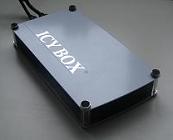 your digital photos and videos probably can’t. Hard disk drives fail and while it may still be possible to recover data, it is much better to have a separate backup of your files on CD, DVD or an external USB drive. These can be as little as £50 and copying your files to another drive is easy. Some even come with backup software to help automate the backups or you could download SyncToy free from Microsoft. Windows 8 and 10 users can backup their data by simply plugging in an external hard drive and turning on File History. The computer will then automatically backup their files every hour. your digital photos and videos probably can’t. Hard disk drives fail and while it may still be possible to recover data, it is much better to have a separate backup of your files on CD, DVD or an external USB drive. These can be as little as £50 and copying your files to another drive is easy. Some even come with backup software to help automate the backups or you could download SyncToy free from Microsoft. Windows 8 and 10 users can backup their data by simply plugging in an external hard drive and turning on File History. The computer will then automatically backup their files every hour.
Slow PC?
You could be running out of memory (RAM). Use your PC normally for 30 minutes or so. Press [Ctrl][Alt][Del], then select the [Performance] tab. You should see the window below.
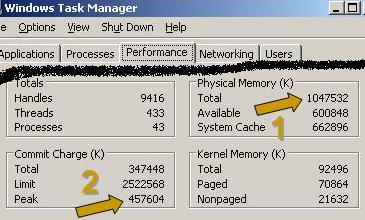 |
Arrow 1 shows how much memory your PC has, while arrow 2 shows the peak amount of memory you have needed since you powered on the PC. Ideally, 1 should be greater than 2, as shown above. If 2 is greater than 1, you might need more memory or you could remove unnecessary programs from memory, or both. Generally speaking, the more memory you have the better your PC will run.
If your brand new PC isn’t quite as quick as you’d hoped, and this is relatively common, you can probably blame the manufacturer. They frequently load lots of bloatware onto new PCs. This is largely unwanted and unnecessary software that simply slows down the PC.
PC freezing or locking-up?
There are several things that you should check before you consign your PC to the bin.
The first is an overloaded or faulty power supply. If you’ve added a new top-of-the-line graphics card and a new disk drive, plus some extra memory, don’t be surprised if your power supply can no longer cope. Start stripping away a few components, starting with that graphics card, to see if the PC becomes more stable.
Secondly, if your PC is several years old then inspect your motherboard and check to see if any of the capacitors have discoloured tops and appear to have leaked as they have in this photo. Unfortunately there were a large number of faulty capacitors made in the early 2000s that had only half the normal lifespan (4 years instead of 8). You can buy new capacitors very cheaply but fitting them takes a steady hand with a soldering iron. A new motherboard may be a better option. if your PC is several years old then inspect your motherboard and check to see if any of the capacitors have discoloured tops and appear to have leaked as they have in this photo. Unfortunately there were a large number of faulty capacitors made in the early 2000s that had only half the normal lifespan (4 years instead of 8). You can buy new capacitors very cheaply but fitting them takes a steady hand with a soldering iron. A new motherboard may be a better option.
Finally, dust can cause havoc with a PC if it gets near the pins on your processor. This can cause random freezes at any time, even just after a power-on. To cure this you’ll need to dismantle your PC and remove, clean and reinstall the processor. You’ll also need some thermal paste to rejoin the processor to the heatsink. This is best undertaken by someone experienced in the procedure.
Noisy PC?
Over time your PC will become noisier as various moving parts wear with age. Most of the noise will be generated by cooling fans and your disk drives. It can be easy to replace the former and for only a few pounds you could install a new (virtually) silent fan, transforming your PC.
Software updates
It is essential to ensure that you update Windows regularly together with your firewall and anti-virus software. The latter is usually updated daily, Microsoft usually issue updates to Windows once a month. Obviously, don’t install any software if you are unsure what it is, so get to know your normal updates and how they work.
Firmware and driver updates
If you’re feeling brave, it is also a good idea to update all you hardware devices with the latest drivers and firmware. If you don’t know what this is then you’re best not doing anything, but note this will probably be the first thing worth trying if you have a hardware problem.
Windows System Restore
Windows contains a very useful application that can save you from a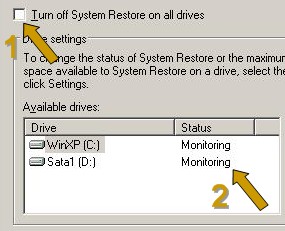 nasty situation, say a faulty software update. To check that it is enabled, Right Click with your mouse on nasty situation, say a faulty software update. To check that it is enabled, Right Click with your mouse on
[My Computer], select [Properties] and then the [System Restore] tab. The box shown by arrow 1 should be empty and the Drive Status should say Monitoring, as shown.
It won’t recover any files you may have deleted but it will let you restore your PC to an earlier, hopefully working state.
LCD text quality
It is important that the Windows Screen Resolution set in
[Display Properties][Settings] is the same as the default resolution for your LCD monitor. This will make a big difference to the quality of text displayed on the screen.
Maintenance
A PC clogged with dust will probably overheat. Cooling fans will have to work harder and noisier to keep your PC cool. Your processor may try to reduce the temperature by slowing down and occasionally your PC may just freeze or randomly reboot. Some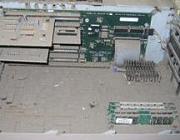 PC manufacturers expect customers to be responsible for dust build-up within a PC, so vacuum yours out regularly. This is a good idea and should be done at least every 12 months. A pressurised can of air (Dust blaster) will work better, but carry the PC outdoors first before cleaning it with one of these – the dust will go everywhere. Check with your manufacturer first if you are worried that opening the computer case will invalidate the warranty. PC manufacturers expect customers to be responsible for dust build-up within a PC, so vacuum yours out regularly. This is a good idea and should be done at least every 12 months. A pressurised can of air (Dust blaster) will work better, but carry the PC outdoors first before cleaning it with one of these – the dust will go everywhere. Check with your manufacturer first if you are worried that opening the computer case will invalidate the warranty.
Copying files downloaded from iTunes
Simply burn the protected files to CD and then use iTunes again to read the files from the CD. They will be read in un-protected form allowing them to be copied to other devices.
|



